Tuesday, December 18, 2018

Some assessment options using G Suite

I came across some possibilities to set up a rubric with Google Sheets (like MS Excel) and other G Suite programs.  The first is using this template from Google Sheets, found here: https://goo.gl/oKw1Ty


As this is a view-only template, to make your own copy by selecting File & Make a Copy from the Menu choices.  The template can be customized to specify your criteria (or better yet, co-create the criteria with your students).  The performance scale can also be adjusted to capture different rating scale language (e.g., emerging - developing - proficient - extending).

If you are using Google Classroom, you can attach this rubric and make a copy for each student for an assignment that you push out to students (+Create).  The students, on opening the Google Sheet will be able to change the Student Score (0-4) and it will automatically change the cell which is highlighted.  There are columns for the teacher to provide a score, which will modify the rubric:
There are other options that are available for assessment even though my preference is for the above Google Sheets (that is now available from the Reporting & Assessment page of the weebly site.

Keep in mind that assessment using G Suite programs can constitute a "gray area" for FIPPA as it can involve the collection of private and confidential information into the cloud.  As a workaround, you could have students create aliases.  Besides what I've referenced as method 1 (below), here are some other options for assessment using G Suite programs:

Assessment using G Suite - Google Sheets


Method 1. Self-assessment as hand-out for Google Classroom: https://goo.gl/oKw1Ty


Advantages
Limitations
Options for students to highlight their own assessment, showing up in different colour
Percentage based on teacher assessment


Method 2. Add-on to Google Sheets “Flubaroo” as self-marking;


Add-on in Google sheets


Advantages
Limitations
Allows for more flexible responses
Can insert digital stickers/ badges: http://www.flubaroo.com/hc/including-stickers
Works in conjunction with Google Forms


Method 3. Add-on to Google Sheets “Doctopus” & Extension from webstore: “Goobric”

Advantages
Limitations
-can copy and paste rubrics from Word Docs or Excel with text wrapping
-Excellent for descriptive feedback
-takes time to get extensions/ add-ons (ensure that you’re logged in only with …@sd28.org account

Comparison/ explanation of the 2 rubric types: https://sites.google.com/a/spsdme.org/flubarooetc2016/home

Tuesday, November 27, 2018

Going further with Google Docs

Now that I have Flashback express installed onto my computer, I can add video clips more easily!  Today's blog is a video sharing of using Google Docs to create a sketch.  This will be elaborated on in the Sandbox session on Monday, Dec 3 after school.  Sandbox sessions are meant to be a time to explore and learn more about G Suite programs.  If you want to learn more about any of the Google Apps for Education suite (Read&Write for Chrome, Google Slides, Docs, or Classroom), the Sandbox session is a forum to explore and ask questions.

Here are some of the features that are integrated into Google Docs:


As a blog is meant to be a conversation, feel free to comment and add your ideas and questions for future exploration!

Tuesday, November 20, 2018

Finding things

On a tangent of November's theme of Remembrance, it's easy to forget where we saved our files, especially as we get older.  Fortunately, computers have some shortcut keys to help us find documents.  First and foremost is the shortcut key, Ctrl-F
Holding these 2 keys down when browsing a web page will help you find any given word that you're looking for.  Other shortcut keys like Ctrl-C and Ctrl-V for copying and pasting you may be familiar with.  Here's a glimpse of other shortcuts available for our use.

When looking for a file on your computer (H: drive), there's the search box that you can type the file name or a fragment of the filename:


If the file is found on Google Drive, advanced search will find all files that contain words embedded into the document!

Click on the triangle in the search box for this drop-down to appear.


 A more thorough explanation of searching drive is found at this YouTube clip.


Now, if only it would be this easy to find my keys!

Tuesday, November 13, 2018

Printing & chromebooks

Chromebooks have a few advantages over laptops.  They are less expensive and faster to log in (15 seconds rather than 2+ minutes).  They hold a longer charge (7 hours).  Click on the hyperlink for a summary comparing the two options: chromebooks vs. laptops.

There are some disadvantages too.  At this point, you cannot print directly from a Chromebook but there are some ways to get work printed.  This process involves sharing on Google Drive (the cloud).

If students have a finished work that they want to get printed from a Google Doc or Slide presentation, they can "Share" it with the teacher who will likely be logged into a desktop computer on the network with computer access.  The "Share" button is usually located in the top right corner.


Clicking on the "Share" button brings in the pop-up "Share with others" to give the students the option to send or share it with the teacher by typing in the teacher's Google account (...@sd28.org).

The teacher, when logged into the Google account (see video link), can then check the Google Drive and Shared with Me folder to find the handed in work:

Any work that has been shared from others should appear in the Google Drive "Shared with me" folder sorted by most recent submission.  You will be able to print to connected printers on the network.

Here are is a hyperlink to Chromebook shortcut keys to help make navigating the touch pad a little easier.

Tuesday, October 30, 2018

Flash issues?

When trying to access a website using Google Chrome, do you come across this error of needing to support Flash?
Sometimes, all you will need to do is click on the puzzle piece and allow flash to be run when a pop-up appears:
After allowing, you might need to refresh the webpage.  The refresh icon
is a useful troubleshooting tool short of restarting Google Chrome.

Google Chrome is in process of discontinuing flash.  This is happening with Firefox as well.  Websites need to adapt to this reality.  In the meantime, here's a work-around if the above process doesn't work.  Login to a Chromebook as "Guest"


Go to the website that you want to view and click on the lock icon to the left of the URL (https:// website address).  This dropdown will appear:


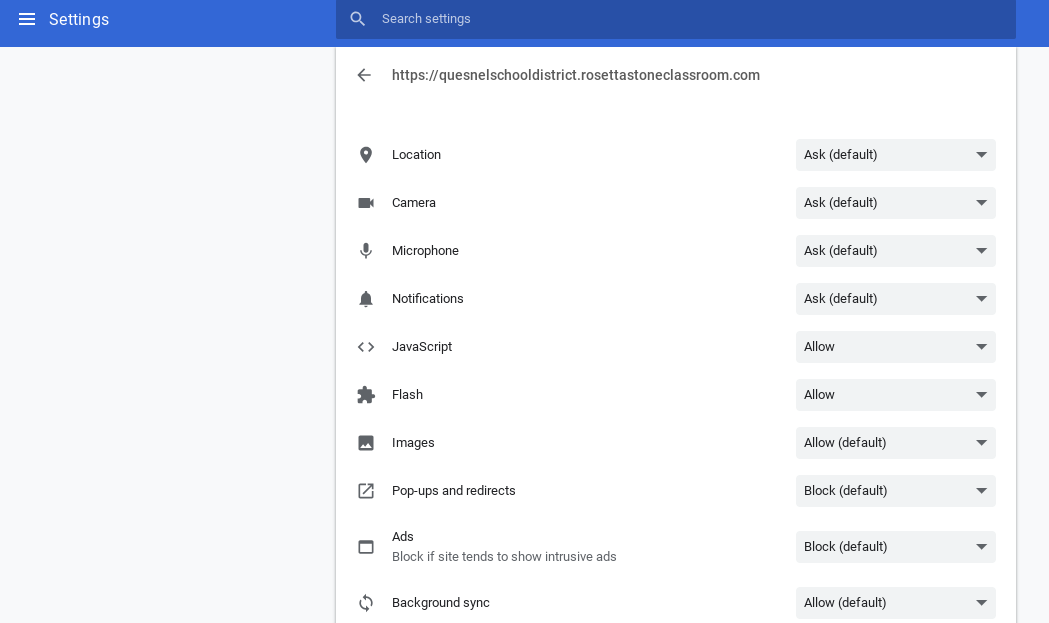
Go to Site settings to make adjustments to Java and Flash to allow both:


Notice that Java and Flash should be changed to "Allow"
Your final step after allowing Java and Flash is to refresh the webpage that you want to view and you should be good to use the site without any more "Flash" headaches!


Tuesday, October 23, 2018

Repairing G Suite sign-in problems & ERAC Digital Classroom

G Suite

You may have noticed that the Google account goes into "pause" or "error" from time to time.  To fix this, click on the three vertical dots below the exit out of Google Chrome and select "Settings."  In settings, you have the option to sign out of chrome or turn off.  Re-sign in again and link data to remedy the problem.

Our SD28 helpsite with explanations and video tutorials for logging into G Suite, was temporarily not working but is now fixed: https://sites.google.com/sd28.org/g-suite


ERAC Digital Classroom

To help teachers and others find the ERAC Digital Classroom websites, I've created a new page for the weebly titled BC ERAC Digital Classroom: https://bcnewcurriculum.weebly.com/bc-erac-digital-classroom--collections.html   You can get to any of these excellent resources: World Book, Know BC, Media Smarts, Gale or EBSCO search engines, and the extras (à la carte items): Curio, Learn360 and myBlueprint/All About Me.

These sites have been vetted for relevance to BC Curriculum and the school district has a subscription for these services.  For home use and to find out how each site can help you in your planning and your students with their learning, check out the ERAC access document that I forwarded to your e-mail.

As the Digital Classroom sites have much to offer, I suggest that you explore what interests you most to get a better understanding of its content and how to navigate the site.  Sometimes it's easy to get overwhelmed.  I recently discovered the gem offering plays and readers theatre: "Dramatic Learning".  I've put together a Google Slides presentation to explain each site in more detail.  The BC ERAC site also has video tutorials and K12 resource collection to search whether books are suitable to BC Curriculum.

Let me know if you'd like any support or further information about any of these topics!

Tuesday, October 2, 2018

Infusing Aboriginal Content into teaching practice

In thinking about Orange Shirt day, I want to draw your attention to some excellent Aboriginal content material for teaching practice.  SET-BC has put together technology-based teaching strategies aligned with the First Peoples Principles of Learning.  I've embedded the link into the Aboriginal content page of the weebly site here: https://bcnewcurriculum.weebly.com/aboriginal-connections.html


Outlook mail: Desktop vs. Web App

Today's blog is all about Outlook mail!  Like our old GroupWise email system, there are two ways to access Outlook email: through the we...